If you are attempting to access DoD SSL sites (such as ASFI (acquisition.army.mil), DIBBS (dibbs.bsm.dla.mil)), you may receive a warning message stating that you should not proceed. With some browsers (FireFox), you can add an exception to the warning and continue normally. In Chrome, you’ll be stopped dead.
As of February 27, 2014, the DoD site supports only IE up to version 10 but not 11. The latest FireFox & Safari browsers will also be able to access the site as before but Chrome will present a warning message.
To get around this, you can install the DoD Root Certificates on your machine. This will allow your Web browser (Chrome, IE, Safari) to trust the identity of Web sites whose secure communications are authenticated by DoD.
Is this required? No, however, this will help you avoid Security Alert windows when you go to secure communication Web sites for various DoD agencies, including DTIC, DIBBS, AFSI. Future access to DoD Web sites may require certificates.
To do this correctly, you should download ALL of the certificates referenced here: https://dodpki.c3pki.chamb.disa.mil/rootca.html and import them into your Trusted Certificate Store. Here’s How (Windows):
- Browse to this site: https://dodpki.c3pki.chamb.disa.mil/rootca.html using IE 6.0 or later, or Firefox 3.0 or later. (You can’t use Chrome for this page, it isn’t supported by the DoD).
- Right click on each of the certificates and download them onto your disk.
- Open Certificate Manager by clicking the Start button , typing certmgr.msc into the Search box, and then pressing ENTER. If you are prompted for an administrator password or confirmation, type the password or provide confirmation.
- Click on Trusted Root Certificate Authorities, then Right Click and choose Import.
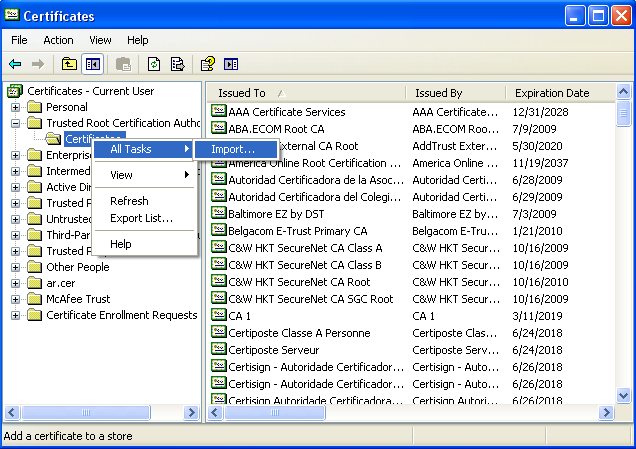
- Import each of the certificates that you saved to disk.
- As an option, you can import the certificates from Chrome. To do this, click the Wrench, Options, Under the Hood, Click the Manage Certificates Button, Click the Trusted Root Certification Authorities tab, then import each of the certificates.
If you have trouble with this feel free to give us a call and we’ll step you through it online.